Save actions
Every save has an Actions window. Open it from the Saves tab of the SaveKeeper panel, with the Actions button beside the save.
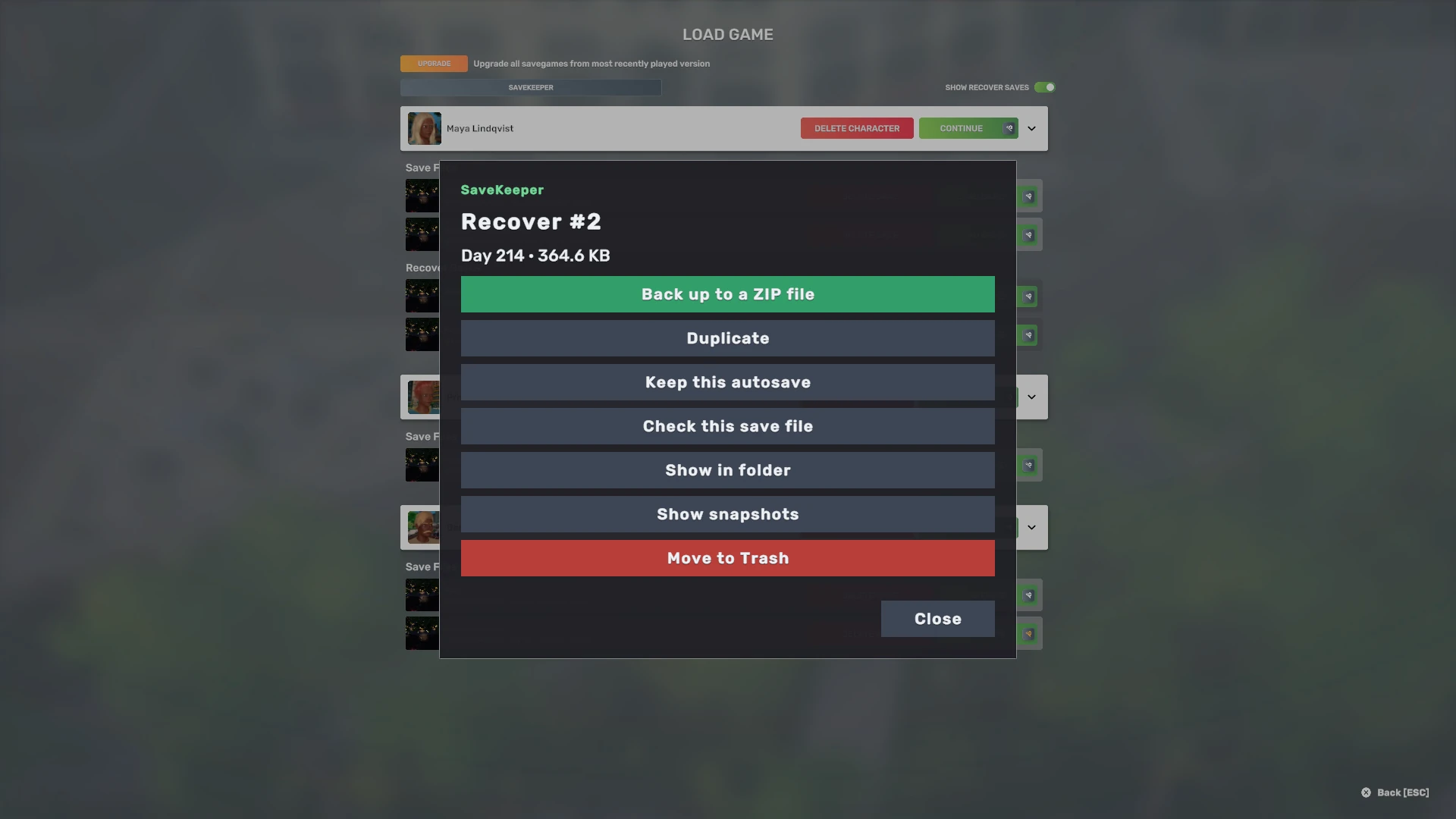
| Action | What it does |
|---|---|
| Back up to a ZIP file | Makes a standard ZIP of this save, verifies it, and tells you where it is. See Backups. |
| Duplicate | Makes a copy of this save under a new name you choose. |
| Keep this autosave | Autosaves only. Copies the autosave into a normal save, so autosaving can't replace it. |
| Check this save file | Checks whether the save file was completely written, and reports what it found. |
| Show in folder | Opens the save's folder in Explorer or Finder with the save file selected. |
| Show snapshots | Opens the Snapshots tab. |
| Move to Trash | Moves this save to SaveKeeper Trash, after you confirm. See Trash and deleting. |
Actions that change files wait until the safety backup question has been answered for this version; if it has not, SaveKeeper asks it first.
Duplicate or Keep this autosave?
Both make a new, ordinary save and leave the original exactly as it was. The difference is what you start from:
- Duplicate copies any save under a new name. Use it to branch a game: try a risky plan in the copy and keep the original to go back to.
- Keep this autosave is for recover saves. The game reuses its autosave slots, so an autosave you care about will eventually be replaced. Keeping it makes a normal save from it, which autosaving never touches.
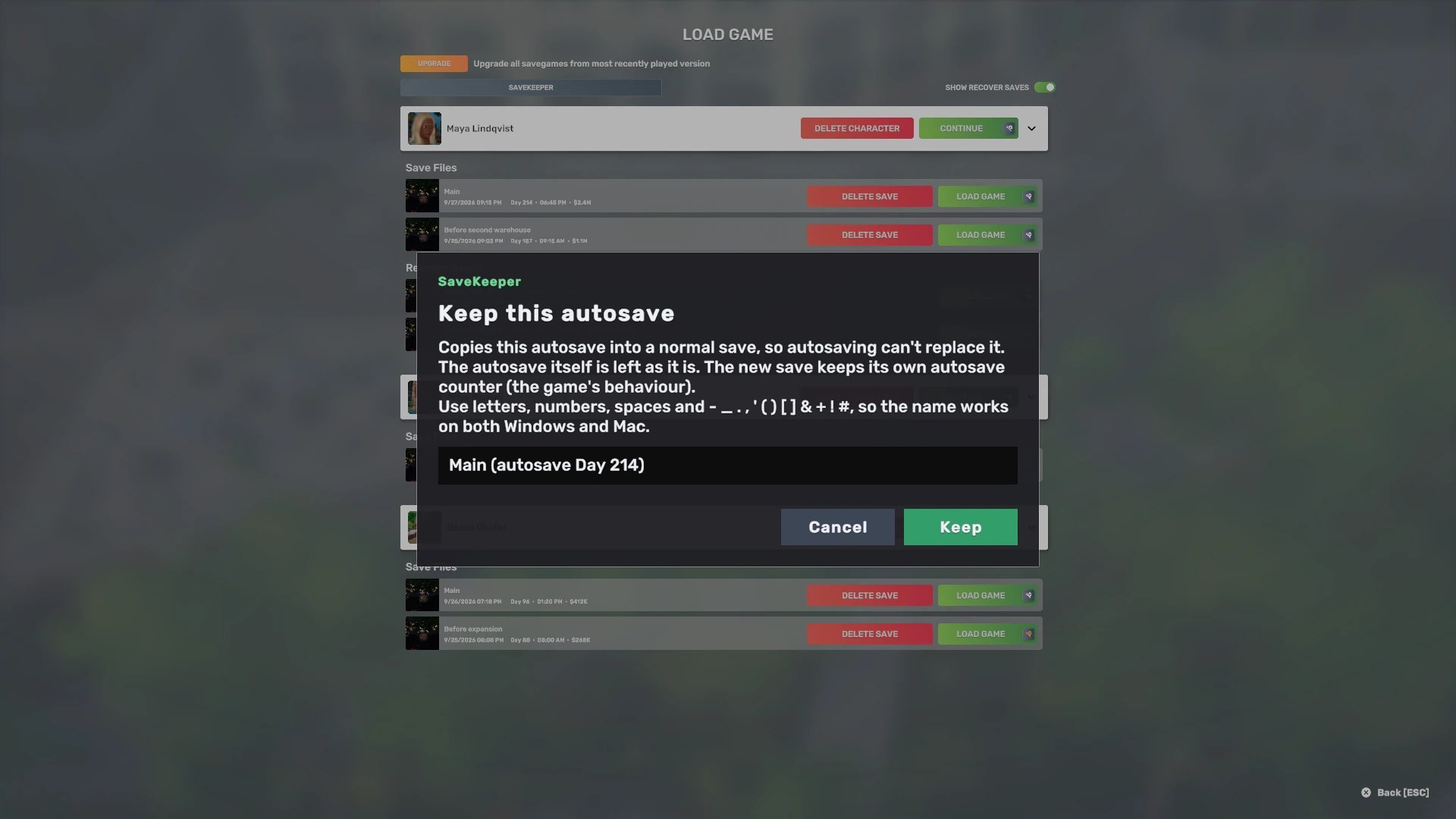
SaveKeeper suggests a name for the new save: for a kept autosave, the save it was last saved as plus its Day, like Main (autosave Day 214); for a duplicate, the original name with (copy). You can type any name that is not already used. The new save keeps its own autosave counter, which is how the game itself behaves.
After a Duplicate or Keep, close and reopen Load Game to see the new save in the game's list.
Check this save file
SaveKeeper checks that the save file was completely written. You see one of:
- This save file is complete.
- This save file is empty (0 bytes).
- This save file is incomplete (it was not fully written).
- This save file is damaged (its data doesn't match its own checksum).
- That it could not check the file, or does not check this save's format, with the reason.
A complete file is not a promise that it will load: it means the file was fully written. The same check runs automatically when you load a save; see Snapshots.