Backups
SaveKeeper keeps four different kinds of copy. They do different jobs, and it helps to know which is which.
Four kinds of copy
| Kind | What it is | Made when | Where |
|---|---|---|---|
| Version safety backup | One ZIP of your whole SaveGames folder, every file as it is. | Once per SaveKeeper version, if you choose to create it. | Your backup location |
| Save backup | One ZIP of a single save. | When you choose Back up to a ZIP file. | Your backup location |
| Snapshot | A copy of a save as it was when you loaded it. | Automatically, each time you load a changed save. | SaveKeeper's folder |
| Trash entry | A save or character you deleted, moved rather than removed. | When you delete in Load Game. | SaveKeeper's folder |
All four stay until you remove them. SaveKeeper never deletes any of them on its own.
Backing up a single save
In the SaveKeeper panel, open Saves, press Actions beside the save, then Back up to a ZIP file. SaveKeeper writes the ZIP, checks it, and shows where it is:
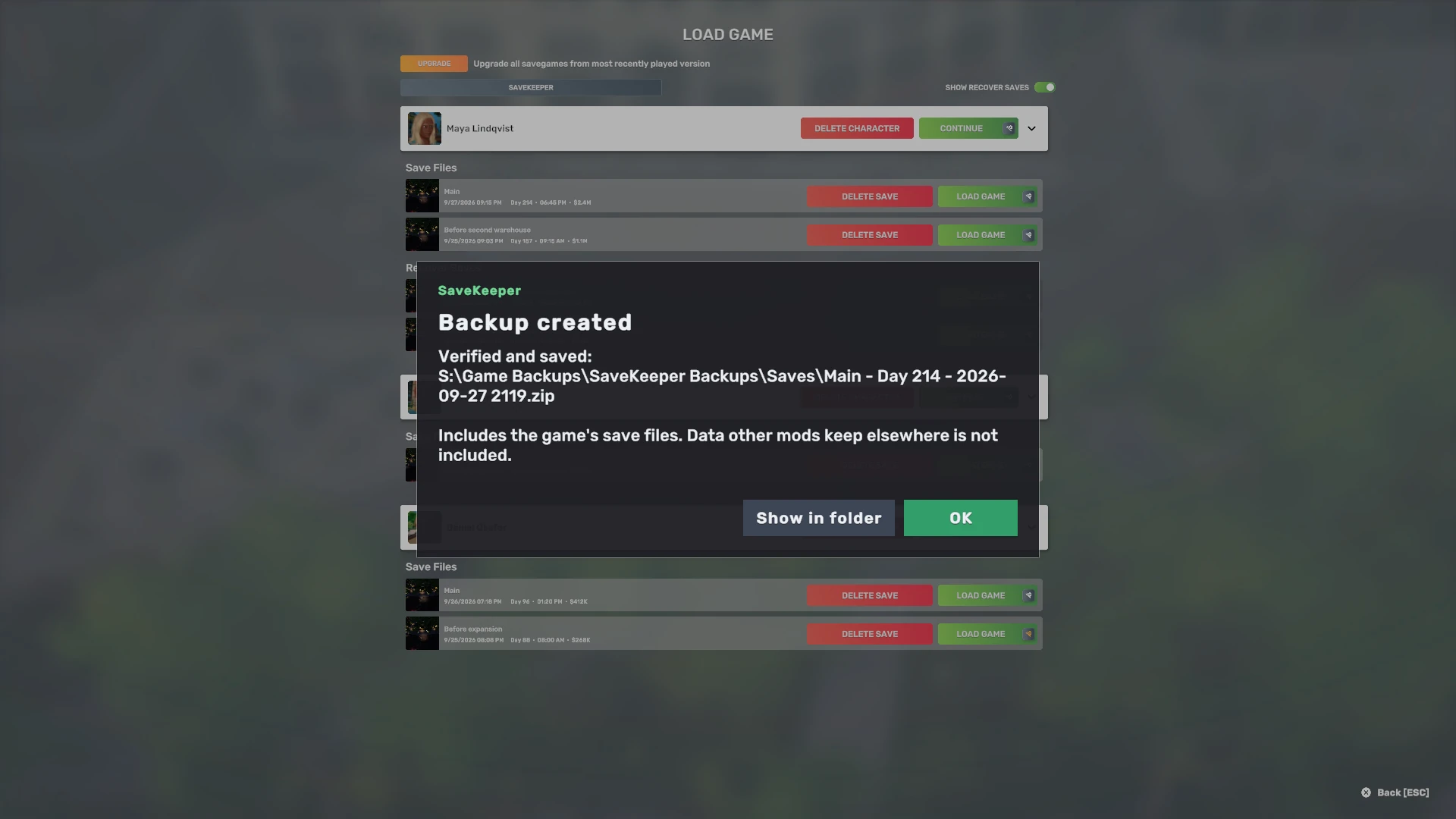
- Standard ZIP. Named after the save, its Day and the time you made it, for example
Main - Day 214 - 2026-09-27 2115.zip. Any operating system can open it. - What is inside. The save's own game files (the save, its information file, its screenshot and portrait) and a small manifest listing each file with its checksum.
- Verified. SaveKeeper checks the finished ZIP against the original before it tells you the backup was made. If the check fails, it says so instead.
- Not included: data another mod keeps outside the game's save files. If a mod you use stores its own settings or data elsewhere, back that up the way that mod describes.
The Backups tab
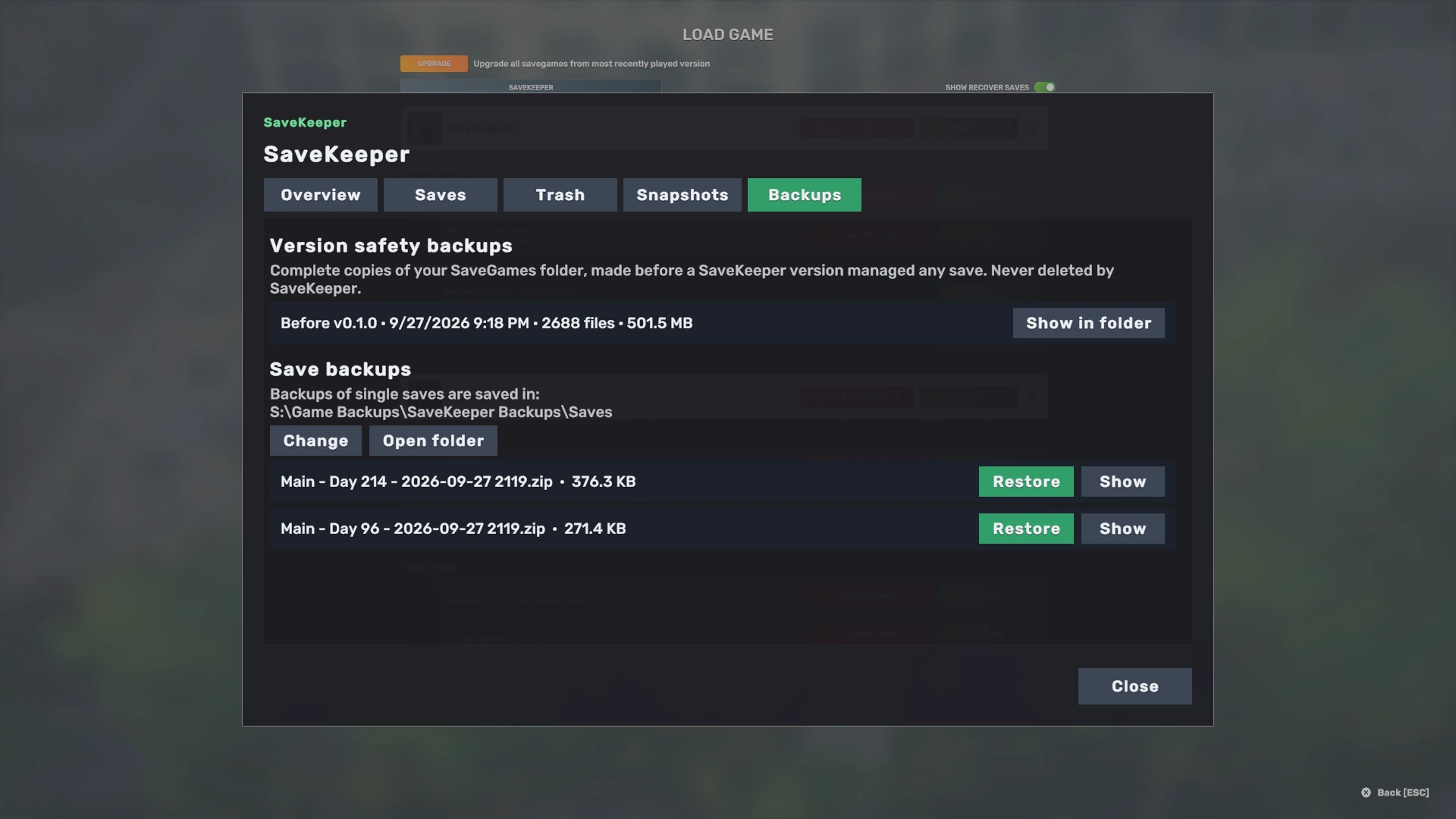
Restore brings a save backup back as a new save in its character's folder. It never replaces an existing save, and the ZIP file stays as it is. If the save's original name is already in use, SaveKeeper suggests another, such as Main (restored):
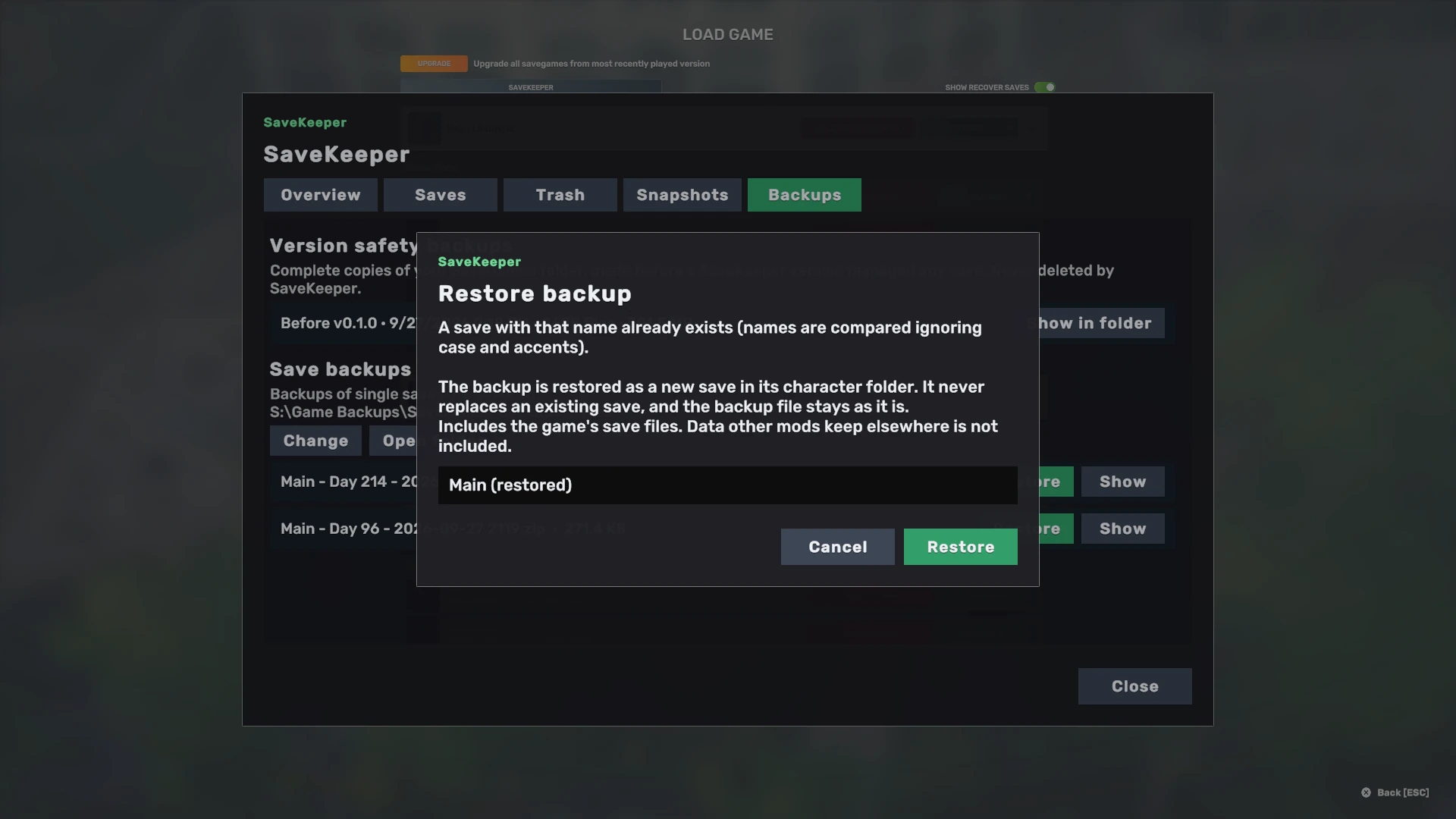
If the character's folder is no longer there, SaveKeeper creates it. More on how restores stay safe: Restoring safely.
Backups go to your backup location, which starts inside SaveKeeper's own folder. That folder is on the same disk as your saves, so for backups you really care about, choose a location on another drive, or copy the ZIPs somewhere else.