OverstockReturn: getting started
OverstockReturn adds reverse logistics. Lower or remove a logistics target, and the stock a store holds above its new target goes back to the warehouse that supplies it.
Two kinds of return
- Standard Returns are free and travel with the normal logistics cycle.
- Urgent Returns pay overtime to collect a product sooner.
Install it
- Subscribe to OverstockReturn on the Steam Workshop.
- Start Big Ambitions, or restart it if it was running: the game reads mods when it starts.
- Check that OverstockReturn is enabled in the game's mod list.
Update it
Steam updates Workshop mods for you. Restart the game after an update so the new version is the one that loads. When your city is ready, the release notes for the new version appear once per character: Got it records that for all of that character's saves, and Close only hides them until you next start the game.
Languages
OverstockReturn is available in English, French, Spanish and Simplified Chinese, and follows the language chosen in the game's Options. Everything it shows is translated, including its Help pages. Any other game language shows English.
Your first return
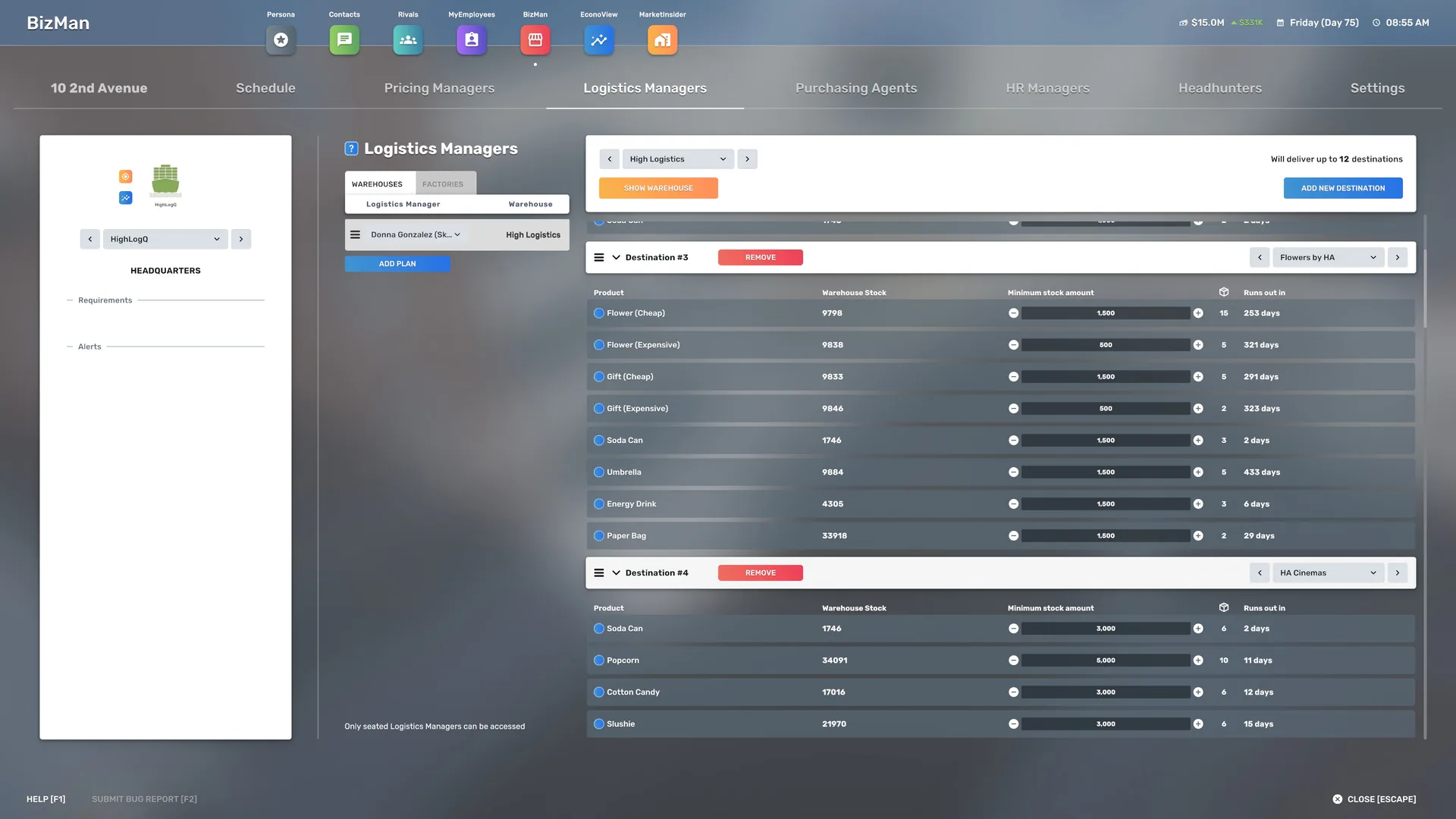
- In BizMan, open the store's logistics plan and lower a product's target, or remove the product.
- That only marks the excess for return. Nothing leaves the store yet.
- At the next warehouse restock, the truck that already serves the store collects it.
Logistics Alerts is in your Contacts as soon as your city has loaded, and sends a one-time welcome message that explains the basics. Nothing is returned until you change a target. The mod's own pages are in the game: press F1 and open OverstockReturn.
Getting support
Still stuck? Open a private OverstockReturn ticket. No account is needed, and nothing you send is published. Your mod version, your game build and what you did just before the problem are the most useful details.